The Complete Guide to Managing PDFs Without Uploading Them Anywhere
The PDF is the workhorse of modern paperwork. Contracts, invoices, school forms, scanned IDs, tax documents, tickets — sooner or later, everything important becomes a PDF. And sooner or later, everyone needs to change one: combine two files into one, pull three pages out of a fifty-page report, rotate a sideways scan, or stamp a draft with a watermark before sending it for review.
The usual answer is to search for a "free PDF tool," land on a website, and upload your file to somebody's server. For a lot of documents that's a bigger deal than it sounds. That contract has signatures on it. That scan is your passport. That report contains client data you're contractually required to protect. Once a file leaves your machine, you're trusting a company you found thirty seconds ago to store it briefly, process it, delete it afterwards, and never look at it — and you have no way to verify any of that.
There's a better model, and it's the one every PDF tool on ComeTool uses: do the work inside your browser. Modern browsers are powerful enough to read, edit and rebuild PDF files locally using JavaScript, which means the file never travels anywhere. It's not that we promise to delete your file after processing — it's that we never receive it in the first place. When you close the tab, the work vanishes from memory. For sensitive paperwork, that's not a feature; it's the whole point.
Combining documents: merge is the everyday hero
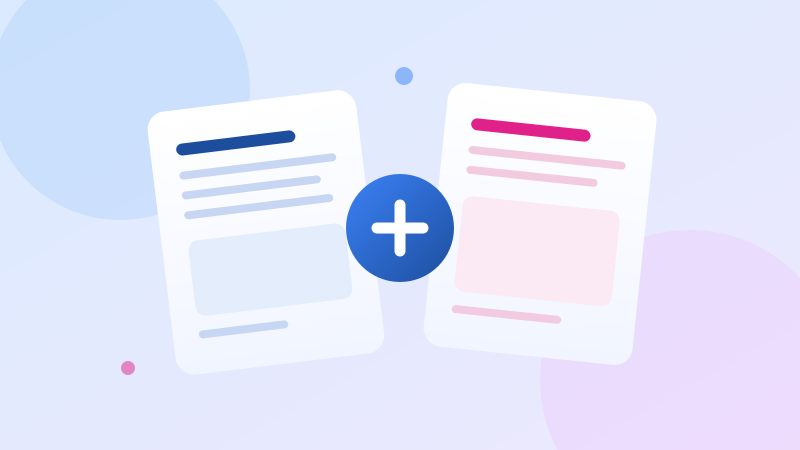
The single most common PDF task is joining files. You have a cover letter as one PDF and a résumé as another, and the application portal wants a single upload. You scanned six receipts separately and accounting wants one file. Our Merge PDFs tool takes any number of files, lets you set their order, and stitches every page into one document. Because the pages are copied at the PDF-object level rather than re-rendered, there's no quality loss — text stays sharp and selectable, and the output is often barely larger than the inputs combined.
Splitting and extracting: getting just the pages you need
The reverse operation is just as common. A fifty-page board pack where you only need the financial summary; a scanned book chapter where you want to send someone three pages. Split PDF understands ranges like 1-3,5, exporting each selection as its own file, while Extract Pages copies chosen pages into a fresh document and leaves the original untouched. If you routinely break big documents into consistent chunks — say, a scanner that batches everything into one file — Split by Range lets you define several ranges at once and download them together as a zip.
Fixing structure: reorder, rotate, delete, crop
Scans rarely come out right the first time. Pages end up sideways, upside down, in the wrong order, or duplicated. Four small tools cover the cleanup: Reorder Pages gives you drag-and-drop tiles to rearrange the document; Rotate Pages writes rotation into the file itself so it stays fixed in every viewer; Delete Pages removes the blanks and duplicates; and Crop Pages trims ragged margins by adjusting the visible area of each page without deleting the underlying content.
Making documents presentable
Once the structure is right, presentation tools take over. Add Page Numbers stamps numbers in the corner you choose — vector text drawn into the page, so it prints cleanly at any size. Add Header/Footer repeats a title or a "Confidential" notice across every page. Add Watermark lays diagonal text like DRAFT across the page at whatever opacity keeps the document readable underneath. And Add Bookmarks builds a clickable outline into the file, so readers of a long document can jump straight to a section from their PDF viewer's sidebar.
Forms: filling and flattening
Many official PDFs contain real interactive form fields. Fill Form Fields reads them and presents them as a normal web form; your answers are written back into the actual PDF fields. When the form is final, Flatten Form Fields converts those fields into ordinary page content so the values can't be edited afterwards — the standard last step before archiving or submitting. One caveat worth knowing: some PDFs merely look like forms but contain no interactive fields at all; those can't be filled this way, because there's nothing in the file to fill.
Security features — and the honest fine print
This is where most tool sites get vague, so let's be precise. Password Protect produces a genuinely encrypted PDF that requires your chosen password to open. Because in-browser PDF libraries can't encrypt an existing file directly, the tool renders each page to an image and rebuilds an encrypted document from those images — which means the output loses selectable text. That trade-off is stated right on the tool page, because you should know it before you commit. Remove Password works only when you already know the password; it cannot and will not crack anything.
The most important honesty concerns Redact Text: it draws an opaque black box over the area you select. That is visual redaction. The text underneath still exists in the file's data and could be extracted by anyone who knows how. For genuinely sensitive material — legal discovery, personal identifiers — use dedicated redaction software that strips the underlying content. A tool that pretends a black rectangle is real redaction is a tool that gets people hurt; we'd rather tell you the limit.
A workflow that keeps you in control
Put together, a typical cleanup looks like this: scan your pages, rotate the sideways ones, delete the blanks, reorder what the scanner shuffled, merge in the cover page, add page numbers, and — if it's going outside the company — a watermark and a password. Six tools, a few minutes, and at no point did your document exist anywhere except your own computer. Keep the original file until you've checked the output (a good habit with any tool, anywhere), and you've lost nothing even in the worst case.
One last practical tip that saves people grief: check the result before you delete anything. Open the merged or edited file in your PDF viewer, scroll to the last page, and confirm the page count with our Page Counter if the document is long. Browser-based processing is reliable, but a thirty-second check costs nothing, and the one time a source file was corrupted going in, you'll be glad the original is still sitting in your downloads folder untouched.
PDFs aren't going anywhere. The paperwork of life will keep arriving in that format, slightly wrong, needing five minutes of fixing. The fix shouldn't cost you an upload of your most sensitive documents to a stranger's server — and now it doesn't have to.